
Boost Your Business Efficiency with Power BI and Power Automate Integration
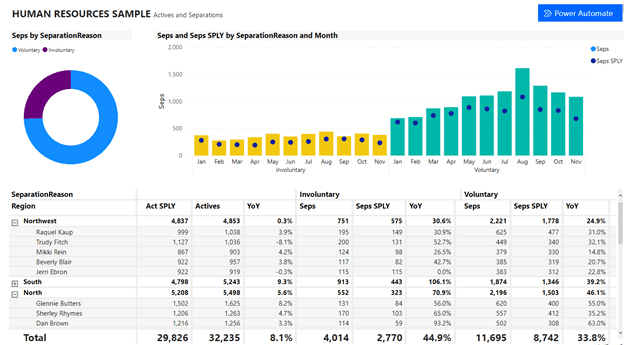
Power BI and Power Automate are powerful tools from Microsoft designed to enhance business intelligence and automate workflows. One the one hand, Power BI is a data visualization tool that helps organizations transform raw data into insightful, interactive reports and dashboards. On the other hand, Power Automate enables users to create automated workflows between various applications and services, reducing manual effort and increasing productivity.
The latest integration between the two allows users to add a Power Automate visual directly inside a Power BI. With this feature, users can trigger automated flows directly from their Power BI reports, enabling real-time actions based on data insights. This integration not only streamlines workflows but also significantly boosts efficiency by allowing seamless automation of tasks such as sending notifications, updating records, or even initiating approval processes, all from within the Power BI environment.
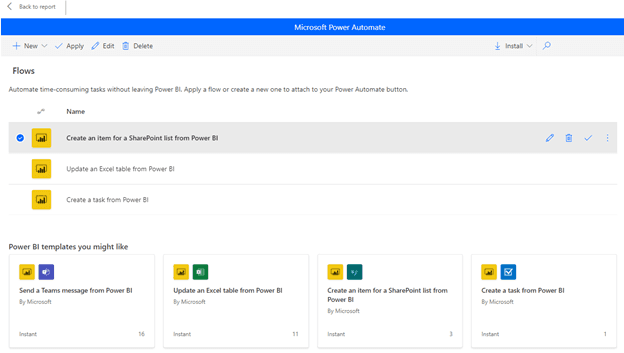
Key Features of the Power Automate Visual
- Seamless Integration: The Power Automate visual can be embedded directly into Power BI reports, allowing users to trigger automated workflows without leaving the Power BI environment.
- Real-Time Automation: Users can initiate flows based on real-time data insights from their Power BI reports, enabling immediate actions such as sending notifications, updating records, or initiating approval processes.
- Customizable Flows: The visual supports a wide range of customizable flows, allowing users to tailor automation to their specific business needs and scenarios.
- Interactive Data-Driven Actions: Flows can be triggered based on specific data conditions or user interactions within the report, making the automation highly responsive to the data context.
- Enhanced Productivity: By automating repetitive tasks and streamlining workflows, the integration helps improve overall efficiency and productivity within the organization.
- Connectivity with Multiple Services: Power Automate can connect with various Microsoft and third-party services, enabling comprehensive automation that spans across different applications and platforms.
- User-Friendly Interface: The visual provides an intuitive interface for setting up and managing flows, making it accessible even for users with minimal technical expertise.
- Access Management: Administrators can control who can and cannot run the flows, ensuring that only authorized users can trigger specific automated processes, enhancing security and compliance.
Use Case: Automating Sales Approval Processes
Scenario
Imagine a sales team that needs to streamline their approval process for large sales deals. The team uses Power BI to track sales performance and identify deals that require managerial approval based on certain criteria, such as deal size or client type. By integrating Power Automate with Power BI, the team can automate the approval process directly from their sales performance report.
Step-by-Step Implementation
- Add the Power Automate Visual to the Sales Report
- Open the sales performance report in Power BI.
- Add the Power Automate visual to the report canvas.
- Select your desired Power Automate environment.
- Create a Flow for the Approval Process
- In the Power Automate editor, create a new flow.
- Set the trigger to be the Power Automate visual in Power BI.
- Define the Trigger Conditions
- Configure the flow to trigger when a specific condition is met, such as when a deal’s value exceeds a certain threshold.
- Use Power BI data fields to set these conditions.
- Add Approval Actions
- Add an action to send an approval request to the sales manager. This can be done using the “Start and wait for an approval” action in Power Automate.
- Include details of the deal in the approval request, such as the deal value, client name, and sales representative.
- Configure Approval Responses
- Define actions based on the manager’s response. For example:
- If the manager approves the deal, update the status of the deal in the CRM system and send a confirmation email to the sales representative.
- If the manager rejects the deal, send a notification to the sales representative with feedback.
- Integrate with Other Systems
- Connect the flow to other systems used by the sales team, such as the CRM system, email service, and Microsoft Teams.
- Ensure that all necessary data updates and notifications are automated.
- Test and Deploy the Flow
- Test the flow to ensure it works as expected under different scenarios.
- Deploy the report with the integrated Power Automate visual to the Power BI Service.
Benefits
- Efficiency: Automating the approval process reduces the time and effort required to manage large sales deals.
- Accuracy: Ensures that all necessary information is included in the approval request and that updates are made consistently across systems.
- Real-Time Actions: Managers can approve or reject deals directly from the Power BI report, enabling faster decision-making.
- Enhanced Collaboration: Integrating with Microsoft Teams allows for real-time communication and collaboration among team members.
By leveraging the integration of Power Automate and Power BI, the sales team can significantly streamline their approval processes, improve accuracy, and enhance overall productivity. This use case demonstrates how powerful and versatile this integration can be in addressing real-world business challenges.
Conclusion
Integrating Power BI with Power Automate opens up a world of possibilities for automating workflows and enhancing business efficiency. By leveraging this powerful combination, organizations can transform their data insights into actionable tasks, streamline processes, and improve overall productivity.