
Custom models creation and semi-automatic learning with AI Builder
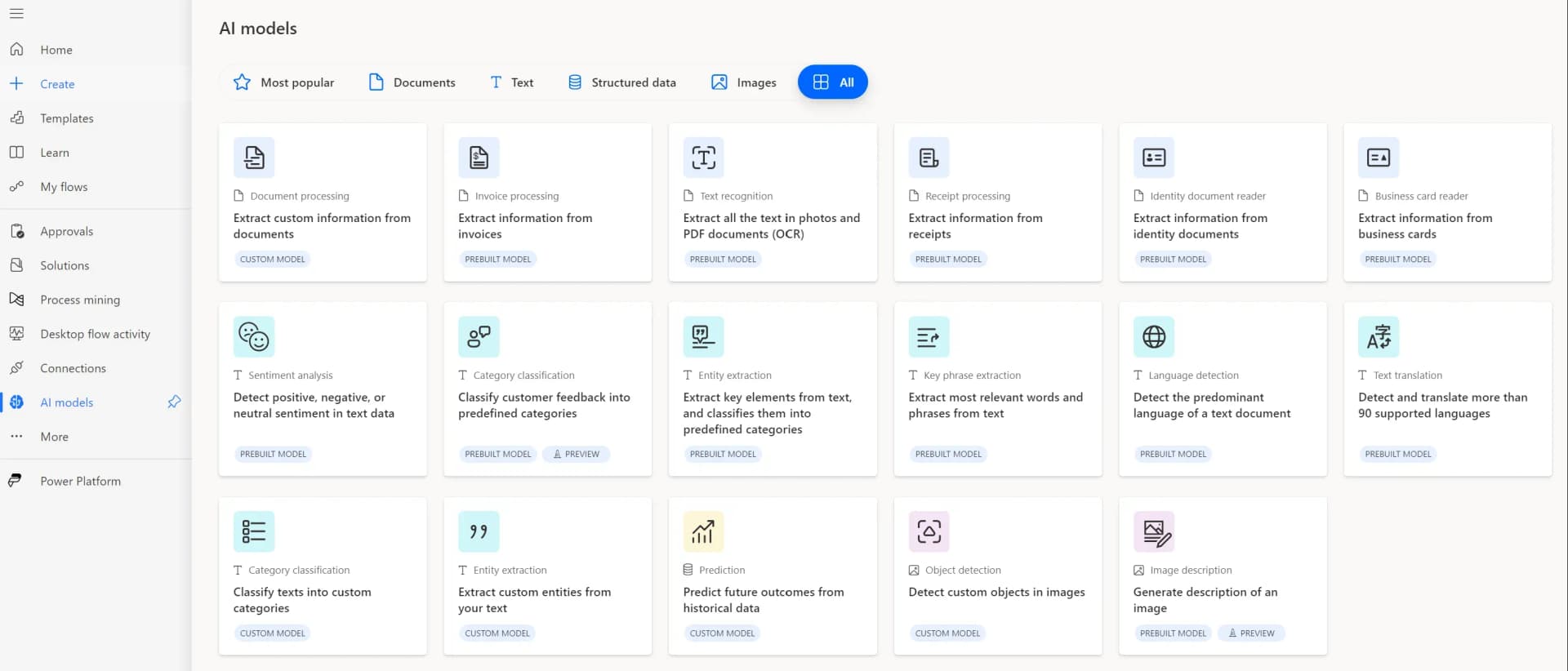
Within the creation of automated processes in the Microsoft 365 environment, we find tools like Power Automate and AI Builder. These tools help us in the creation of automated processes. In this article, we will discover how we can use a new action within AI Builder. This action allows us to automatically train our custom models using previous results.
INTRODUCTION TO CUSTOM MODELS
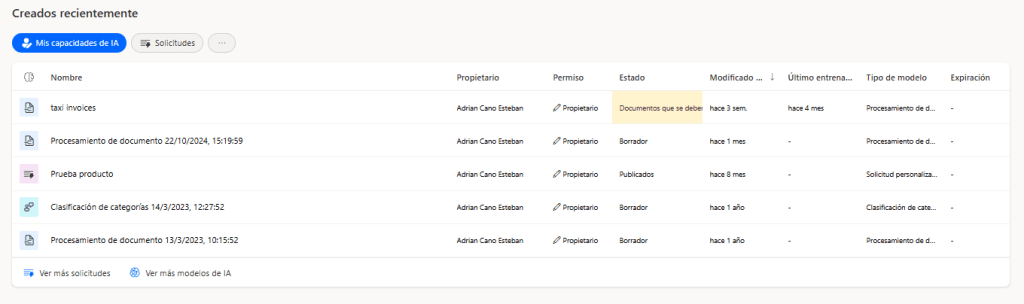
Within the Power Platform tool’s website, in the menu on the left side, we can navigate to the AI Center option. At the bottom, we can see the custom models we have created or that have been shared with us.
CREATION OF CUSTOM MODELS
Let’s look at the steps to follow to create a custom model. We will start with an example of a taxi invoice model that I have created.
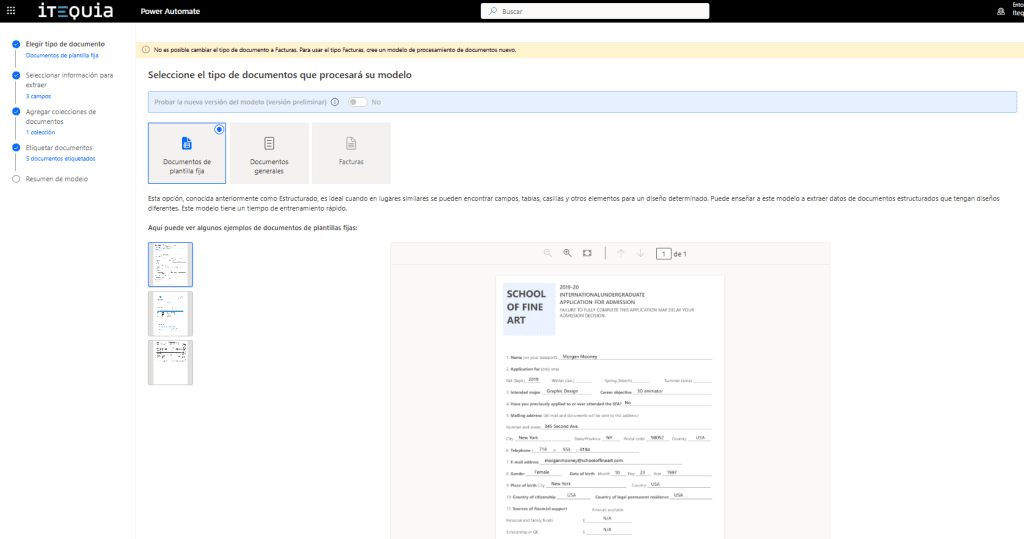
On the first page, we can choose the type of document we are going to handle. We will opt for “Fixed template documents.”
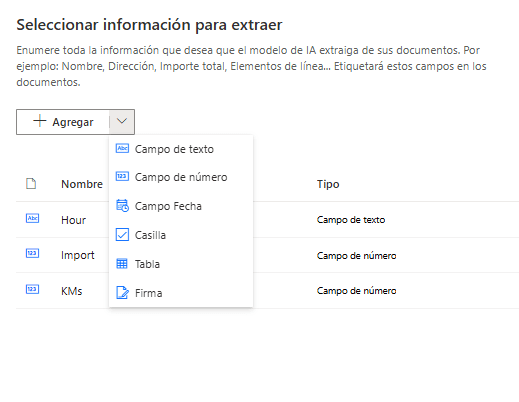
The second screen will allow us to select the fields, assigning them a name and a type. In this case, we will try to extract the time, the amount, and the number of kilometers.
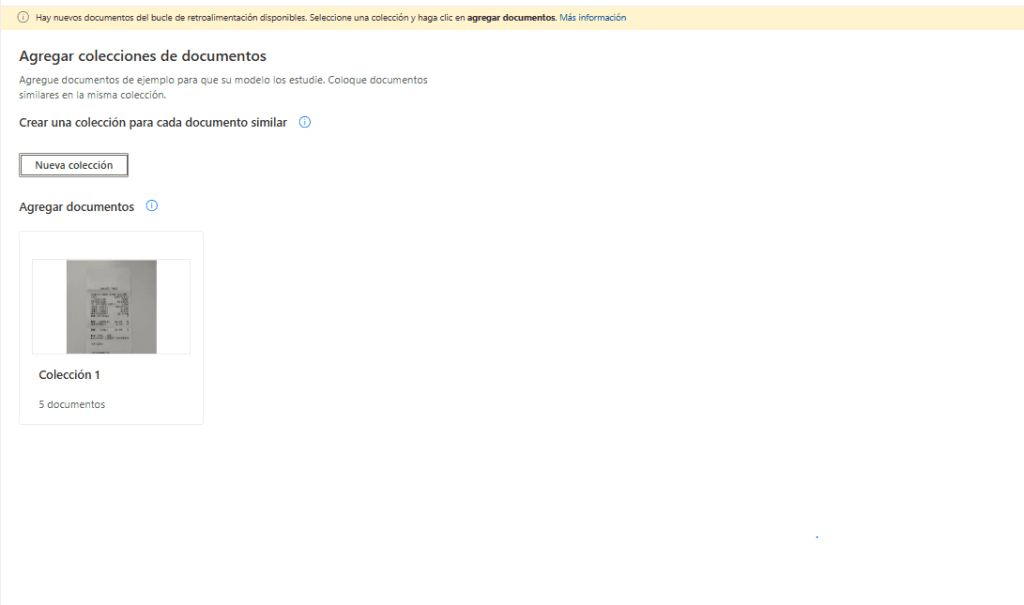
The third section allows us to create collections to upload test documents for training. Let’s focus on a special source given to us, the “Feedback Loop.” At this moment, we have 0 items available.
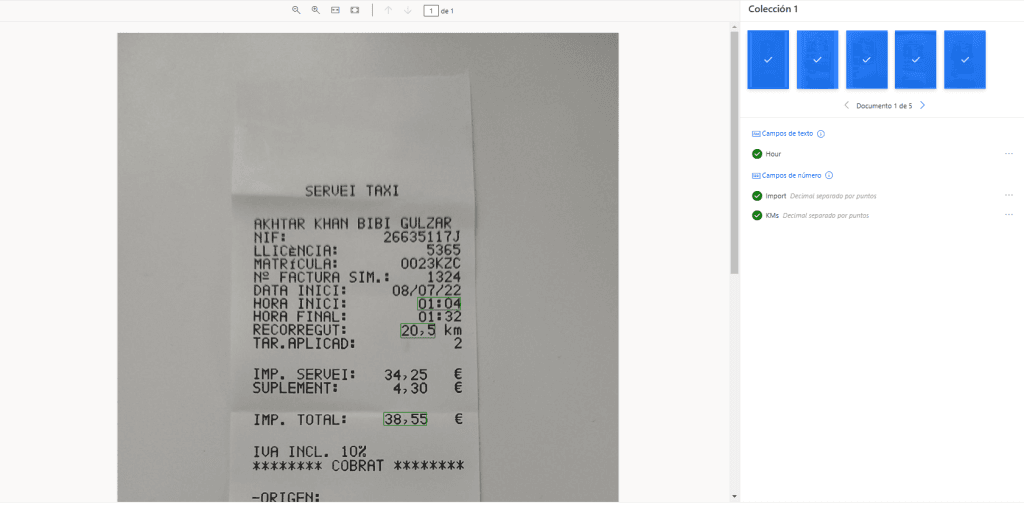
Finally, the last page allows us to mark the different fields and associate them with the ones we have created.
DATA EXTRACTION USING THE CUSTOM MODEL
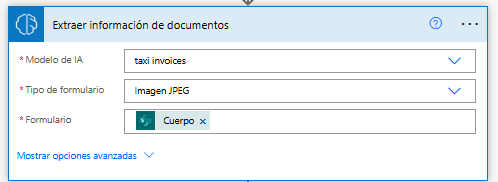
In our Power Automate flows, we can use our custom models to extract information from documents. In our example case, we can extract information from taxi invoices using the “Extract information from documents” action. We will mark the use of our taxi invoice model, the type of document, and the content of the document.
CONFIDENCE IN VALUES RETURNED BY AI BUILDER
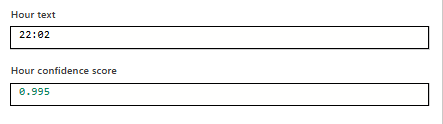
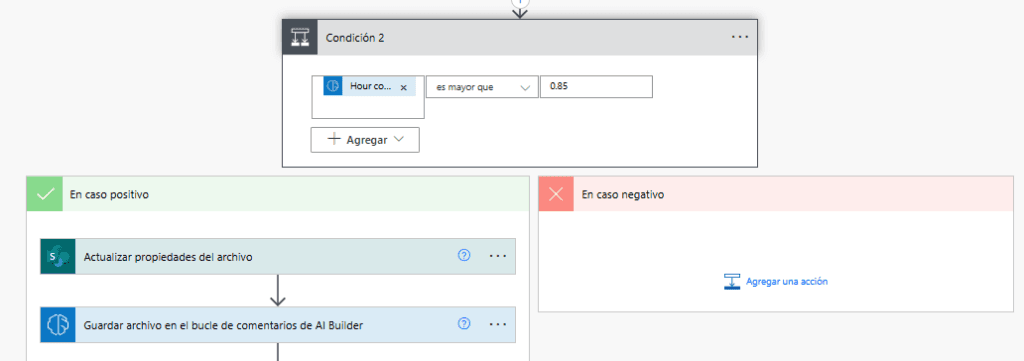
For each of the values returned, AI Builder will give us a confidence score from 0 to 100% indicating how certain it is that the data is correct. This allows us to trust and automate the process by applying a minimum threshold for this confidence. In our case, we have set a value of 85%. That is, if the confidence exceeds 85%, we will trust the data and continue with the automatic process. If not, we will leave it for human processing.
AUTOMATIC TRAINING IMPROVEMENT
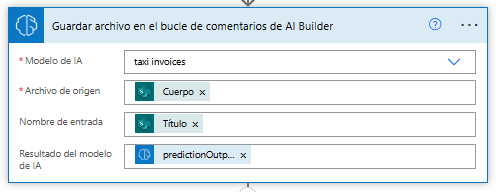
As we have seen in the model training section, we cannot fully automate the training of these models based on results extracted from the use of our model in our flows. However, Power Automate now offers a new action that adds value to training our models. This action is called “Save file to AI Builder feedback loop”.
In this action, we will send the file to the section I previously named as “Feedback Loop” in the editing of our model. This point is interesting if we combine it with the confidence topic mentioned earlier. When the extraction results with our model are positive, we will send them to this section. Thus, in a simple way, a person can retrain the model again only with files that are giving positive results.
If we want to continue improving the performance of our model, we must keep retraining it. And what better way to do this than with real cases that have been processed. Therefore, it is important that the person responsible for maintaining the model retrains it periodically with these files sent directly from the flows. When entering the model list, it will be marked in this way.

Once we enter the editing mode and go to the section to add new documents to the collections, we will see the following:
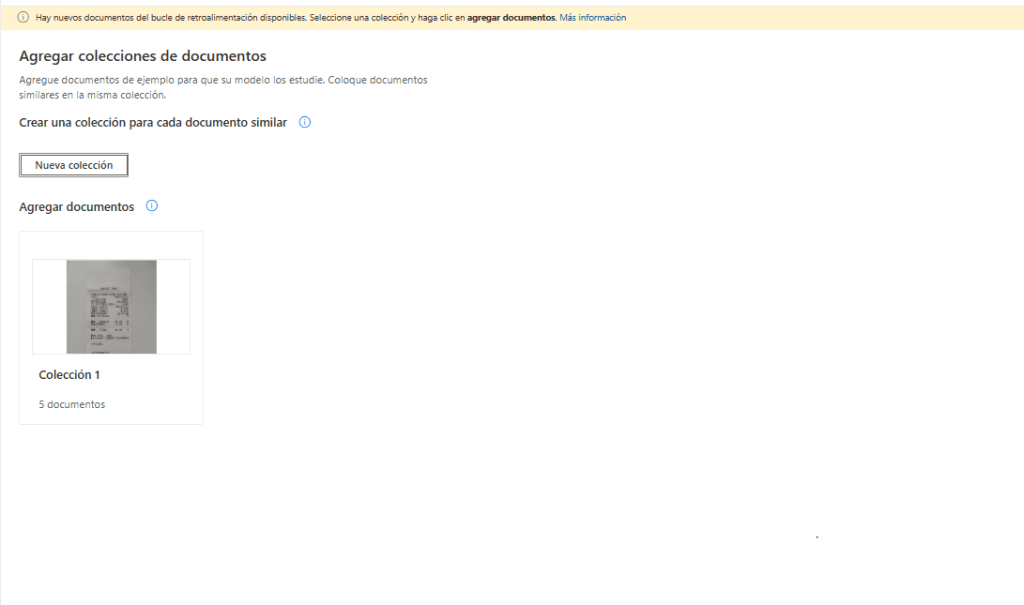
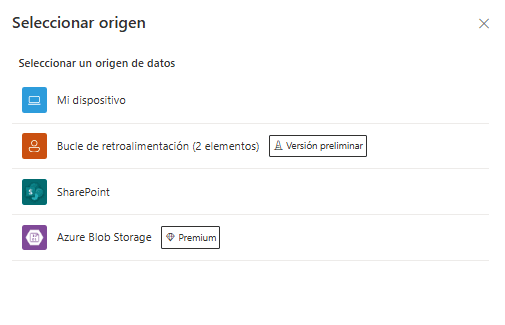
And if we click on the collection to add a new document, we will see that we already have N items. N will be the number of documents successfully processed by our model.
CONCLUSIon
Although we still cannot perform fully automatic training within our AI Builder models, we have made great progress. We can improve the efficiency of our training and automatically send files to our models. This avoids uploading low-quality files that reduce the performance of our models.
Let’s see if in the future the only action we are missing to fully automate this step appears. This action would save us the last step of going to the model editing mode, adding, training, and publishing the new version of the model.
Would you like to improve the automation of your processes with Power Automate and AI Builder? Start today and discover how these tools can transform your workflow! Contact us.