
Discover Copilot plugins: automation and efficiency at its best

In today’s fast-paced business world, efficiency and innovation are not just competitive advantages but necessities. Microsoft Copilot emerges as an essential solution to transform these aspects in your company, optimizing processes and improving productivity. But what makes Copilot an indispensable tool? It has the ability to:
- Automate repetitive tasks.
- Analyze large volumes of data more quickly and easily.
- Facilitate informed decision-making in real-time.
Additionally, Copilot integrates seamlessly with platforms like Microsoft Office Suite, Teams, OneNote, Edge, Azure, GitHub, Dynamics 365, Power BI, Visual Studio Code, and LinkedIn, ensuring greater productivity, collaboration, security, and reliability.
Given this context, have you ever wondered how Copilot can perform complex tasks and provide such precise answers so effortlessly? The key lies in the plugins. Discover how they enhance Copilot’s capabilities through the following article.
What Are Copilot Plugins?
To retrieve and process new information, Copilot requires plugins. Plugins are reusable code snippets that can carry out specific tasks, such as responding in natural language, executing workflows, connecting to external systems, or even providing guidance on specific topics.
How Plugins Are Created
Plugins are created in the Creator Layer of Microsoft Copilot Studio. Here, users can create and edit them through a graphical interface and then publish them in the plugin registry.
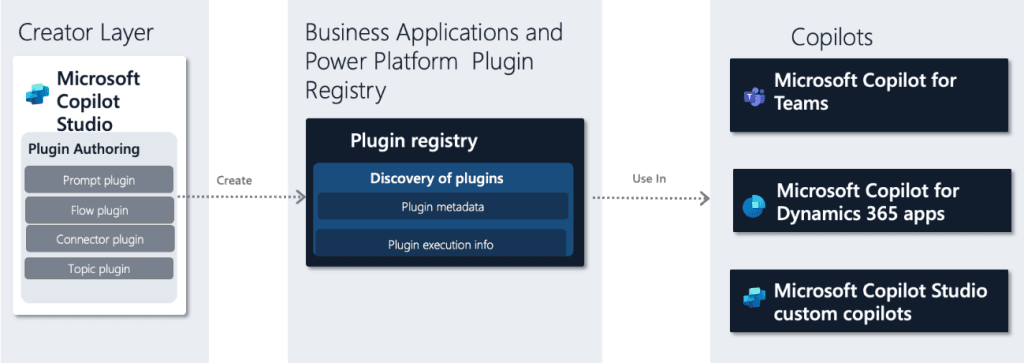
This layer supports four types of plugins:
- Confirmation Plugins: These can answer questions in natural language using advanced natural language processing (NLP and NLG) techniques. For example, a confirmation plugin can respond to a query like, “What are the sales opportunities for ACME Corp?” by accessing data in Microsoft Dataverse and generating a natural language response that can be customized, such as a bullet-point list.
- Flow Plugins: These allow the execution of multi-step workflows using Microsoft Power Automate. For example, a flow plugin can create a new contact in Microsoft Dynamics 365 after management approval or send an email to a client using a predefined template.
- Connector Plugins: These connect to external systems or data sources through Microsoft Power Platform connectors. For example, a connector plugin can integrate with Salesforce or SAP using Power Platform connectors to retrieve or update data. They can be certified and shared between tenants or customized for a specific environment.
- Topic Plugins: These are single-turn conversation threads between a user and a Copilot, created to respond to a specific user expression. For example, a topic about store hours with a trigger phrase like “check store hours” can display the store’s hours. Thanks to the power of language models, these topics can also handle variations in user expressions, such as “see store opening hours.”
Everything You Need to Know About the Copilot Orchestrator
Now that we know all the ins and outs of Copilot plugins, we need to understand the process from the text the end user writes to the response Copilot provides. This task is handled by the Copilot Orchestrator. Its main function is to orchestrate the various tasks and requests users make, ensuring that the appropriate resources are used optimally.
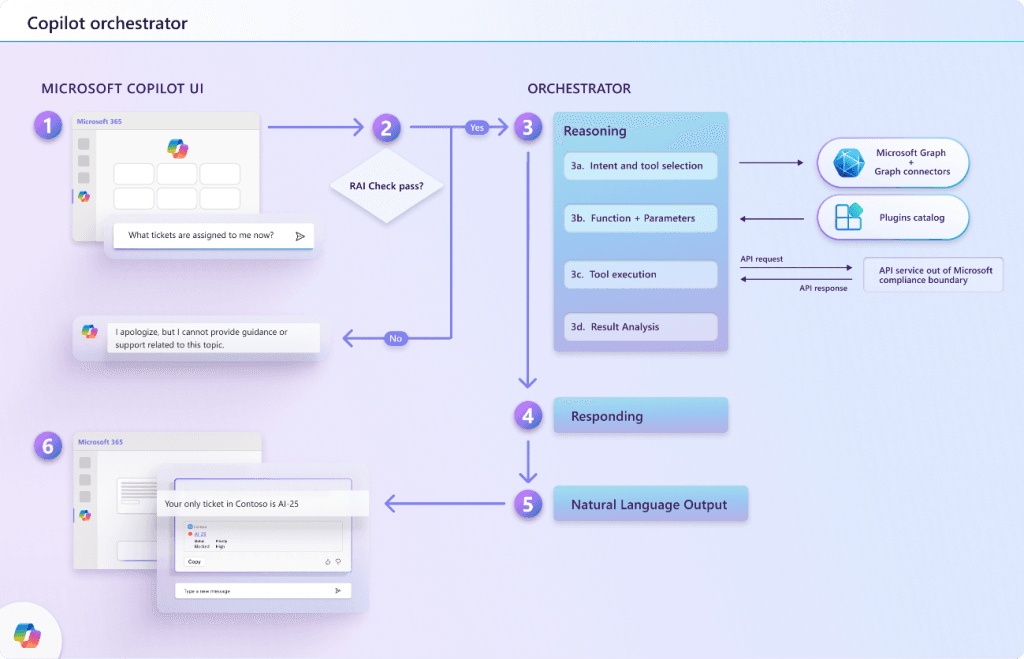
Detailed response generation process in Copilot:
Here is a step-by-step explanation of the process:
- Natural language input from the user.
- Preliminary checks. Copilot analyzes the query to ensure it poses no risk.
- Reasoning. The orchestrator creates a response plan for the user. This plan consists of four steps:
- Context and tool selection: Copilot uses the available information and tools to provide accurate and useful answers.
- Function matching and parameter determination: The orchestrator creates a message with the user’s query, updated context, and chosen plugins. It then sends it to the LLM, which analyzes the input, determines the appropriate plugin and function, and provides the necessary details.
- Tool execution: The orchestrator uses the LLM’s response to create an API request. It then sends it to the tool executor. The request is processed, and the results are sent for further processing.
- Result analysis: The orchestrator incorporates the API response into the current context. It then consults the LLM in a continuous loop. This process continues until it is deemed appropriate to generate a final response.
- Response: Once all the information is gathered, it is sent to the LLM to create the final response. After verifying that it complies with responsible AI guidelines, it is sent to the orchestrator. The orchestrator logs it in the context store and delivers it to the user through the Copilot interface.
- Natural language output: The orchestrator delivers the response to the user and updates the conversation state, leaving Copilot ready for the next question.
In short, it is crucial to provide a precise and brief description of the plugin so that Copilot can identify its capabilities and assign the corresponding user tasks.
Creating high-quality plugins: best practices
To ensure efficient and error-free plugins, it is essential to follow these recommendations when designing them:
- Do not use names of existing plugins.
- Avoid offensive or inappropriate words.
- The text should not allow code injections.
- There should be multiple search parameters.
- Opt for a clear description of the search parameters and their formats.
- Choose specific descriptions to prevent errors and disablements.
- Clearly specify the required inputs in the messages.
- Test the plugin with various prompts to anticipate behavior.
- Use structured, actionable, and visually enriched adaptive cards.
- Provide additional attributes such as status, date, or assigned fields, among others.
Conclusion
At Itequia, we help you adopt Microsoft Copilot in your company. We are convinced it will revolutionize your way of working. This innovative tool can transform your productivity by providing intelligent real-time assistance. With Copilot, what you say becomes action, suggestion, and content. Whether working in Microsoft 365, Outlook, Excel, PowerPoint, or Word, your work will be faster, more efficient, and creative.
Don’t fall behind in this new era of AI. Contact us to discover how our solutions can help you optimize your workflows, improve collaboration, and achieve your business goals more efficiently. Make the most of what Microsoft Copilot has to offer!