
Optimising PowerApps: Making the Most of Environmental Variables
Do you know what environment variables are? We tell you all about them in this article. You will learn how to use them to create more flexible and reusable solutions within the PowerApps ecosystem.
What are environment variables?
Environment variables are values that can be defined and used in different parts of a PowerApps solution. These variables can be of different types, such as text, number, date or option. Also, accesses to data sources. It can be the name of a Sharepoint Online site or the name of your lists or libraries. This type can have a default value or be set by the user or by a formula. Environment variables are stored in the context of the solution. They can be accessed from any application, flow or connector that is part of it.
What are environment variables for?
Environment variables are used to make PowerApps solutions more flexible and reusable. By using environment variables, you avoid having to modify application code or flows every time you change a parameter. For example, a URL, a user name, a password, a colour, etc. In addition, the same code can be used for different environments, such as development, test or production, simply by changing the value of the corresponding environment variables.
How to create and use environment variables?
To create and use environment variables, the following steps must be followed:
- Create a PowerApps solution from the portal or from the tool’s own studio.
- Add the applications, flows and connectors that you want to include in the solution.
- In the solution panel, click on the add button and select the environment variable option.
- Specify the name, type, default value and description of the environment variable. More than one environment variable can be added to the same solution.
- Save and publish the solution.
- To use an environment variable in an application, you must use the EnvironmentVariable function, which takes the variable name as a parameter and returns its value. If you have an environment variable named URL, you can use the EnvironmentVariable(“URL”) formula to obtain its value.
- To use an environment variable in a stream, you must bet on the action of getting an environment variable, which takes the variable name as a parameter and returns its value. For example, if you have an environment variable called Password, you can use the get environment variable action with the parameter Password to get its value.
- Finally, if you are talking about an environment variable in a socket, you should use the expression @{variables(‘variable_name’)}, where variable_name is the name of the environment variable. For example, if you have an environment variable called Username, the expression @{variables(‘Username’)} can be chosen to get its value.
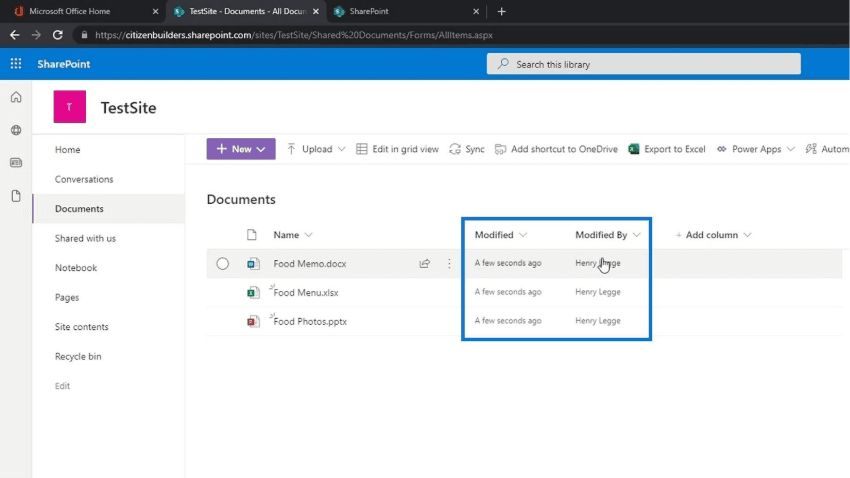
Practical example of a solution with environment variables
Here is an example of a PowerApps solution that uses environment variables to connect to a SQL database and display the data in a gallery. The solution has the following components:
- A text environment variable named Server, which stores the name of the SQL server.
- A text environment variable named Database, which stores the name of the SQL database.
- A SQL connector that uses the Server and Database environment variables to establish the connection.
- A Power Apps application that uses the SQL connector to get the data from a table and displays it in a gallery.
[URL]Image of the solution with environment variables[/URL].
With this solution, you can change the server or SQL database without having to modify the application or connector code. Simply by changing the value of the corresponding environment variables.
Exporting and importing solutions with environment variables
This section shows how a new solution can be created, exported and imported into another environment. The first step, as already mentioned, is to generate the environment variable. In this case it is going to be of type Sharepoint Online site.
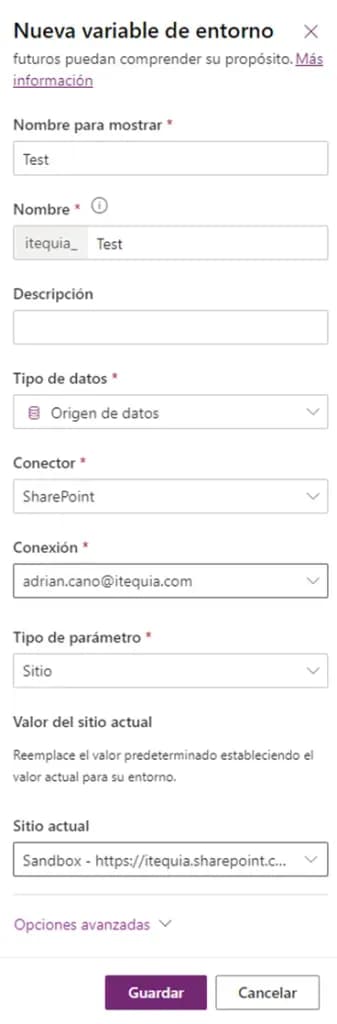
In order to make the value change to another environment, it is essential to use the advanced “export value” option.
This way, when importing the solution into another environment, it will ask us to set the value again.
At this point in the import, we can reset the variable to the value of the environment in which we are working.
Conclusions
In the PowerApps environment, along with its flows with Power Automate, it is very important to define environments that allow for new updates, testing and bug fixes.
This way of working in different scenarios and using environment variables for any parameters that are changing is perfect for saving time. Also, the idea of exporting and importing solutions in different environments is interesting. Thanks to this technique and the use of variables, the deployment time between different environments will be greatly reduced.