
Optimize Security and Data Management with Microsoft 365

In today’s digital era, it is crucial for companies to store their data securely and efficiently. Cybersecurity and privacy are fundamental to the success of any organization. Here are some tips on how to optimize storage management and maximize the security of critical information using tools like Microsoft 365 Archive, Microsoft 365 Backup, and enhanced version controls.
Microsoft 365 Archive, now generally available
For companies that need to store large volumes of information, having a storage tool is essential. Microsoft 365 Archive allows you to keep all SharePoint content in long-term cold storage cost-effectively. All this without sacrificing manageability or security.
There will no longer be a need to spend extra money on additional storage if you exceed the SharePoint Online limit. With Microsoft 365 Archive, you can store more content at a lower cost and reactivate it whenever you need it.
Benefits of Microsoft 365 Archive:
- Quick archiving: In just a few minutes, everything will be saved, regardless of the amount of data.
- Integration with Purview: Provides a complete solution for archiving, security, and compliance, natively interoperating with Microsoft Copilot for Microsoft 365.
- High metadata fidelity: No loss of standard or archive storage.
- Search indexes preserved: Admin-level search indexes are available, and end-user indexes will be available soon.
- Protection against excessive sharing: Copilot ignores archived content, allowing appropriate tagging of inactive data or complete cleanup.
How to set up Microsoft 365 Archive?
Here is a step-by-step guide to configuring Microsoft 365 Archive:
- Create an Azure subscription and resource group.
- Set up pay-as-you-go billing in the Admin Center.
- Activate it in the Admin Center and manage the desired archive.
- Manage Microsoft 365 Archive in the SharePoint Admin Center.
Enhanced version controls transform digital collaboration
Enhanced version controls are essential for managing storage efficiently. They allow you to set retention and deletion policies for versions that align with the company’s needs, optimizing storage space. These controls for SharePoint and OneDrive have been available since the end of August.
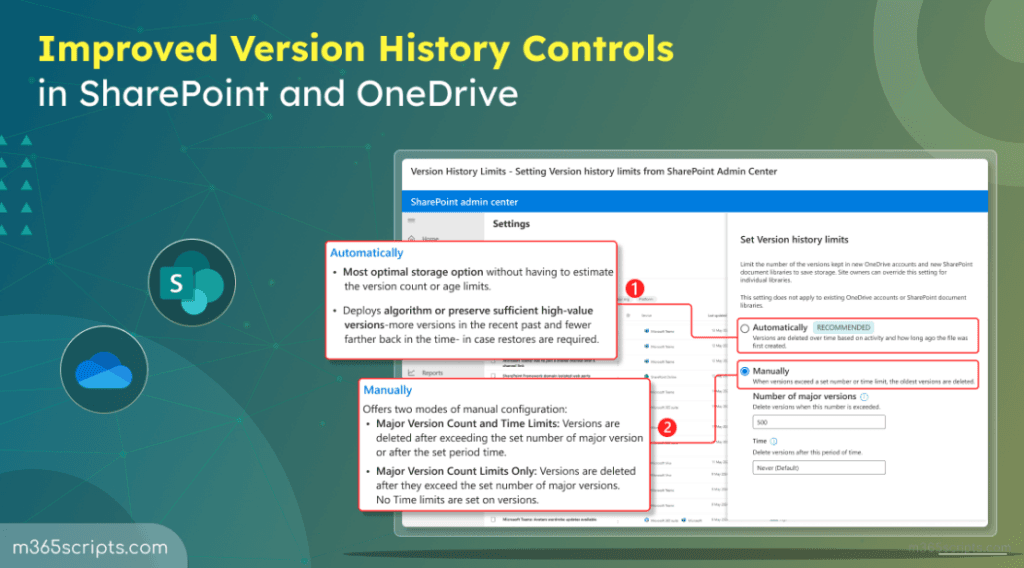
A public preview of new functionalities has been launched. These allow administrators and content owners to manage the storage space used by less important file versions. Thus, old versions are controlled, and there is always the possibility of recovering them.
Previously, document library owners could only set version limits based on the number of versions at the library level. Now, two new features have been introduced:
- Automatic version limits: Intelligently delete file versions, optimizing storage use without compromising recovery capability.
- Manual time-based adjustments: Allow combining time limits with version quantity limits, useful if extended recovery capability is not a priority.
From the SharePoint Admin Center, any organization can change version history limits, both automatic and manual.
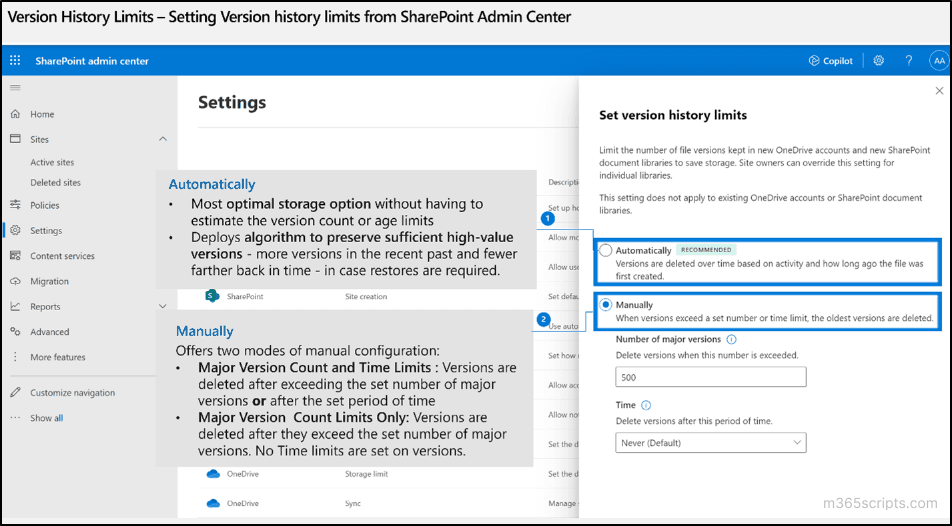
To choose the automatic limit, simply select ‘Version history limits‘ and choose ‘Automatically.’
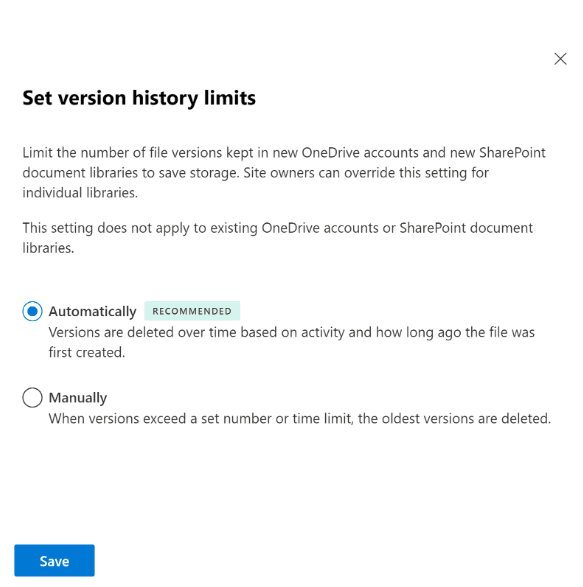
For manual limits, select ‘Manually‘ and enter a value between 100 and 50,000 in the main version number box. Then, set the option ‘Never‘ in the dropdown to delete versions after this period. This configuration ensures that versions do not expire.
Quick data recovery with Microsoft 365 Backup
Microsoft 365 Backup is synonymous with absolute protection of important information, ensuring the company’s security against unexpected incidents. Even in the event of a ransomware attack, Microsoft 365 Backup can recover all information.

How to set up Microsoft 365 Backup?
- Set up pay-as-you-go billing:
- Ensure you have a valid Azure subscription and a configured resource group.
- Have the appropriate permissions, such as being a Global Administrator or SharePoint Administrator.
- Activate Microsoft 365 Backup:
- Access the Microsoft 365 Admin Center.
- Go to Settings and select Automate content processes with Syntex.
- On the Syntex page, select Storage and then Backup.
- Activate the Backup option and accept the terms of service.
- Create backup policies:
- In the Microsoft 365 Admin Center, go to Settings and select Microsoft 365 Backup.
- Create specific backup policies for OneDrive, SharePoint, or Exchange, according to your needs.
Conclusions
Implementing Microsoft 365 Archive and Microsoft 365 Backup, along with advanced version controls, improves operational efficiency and reduces costs. Additionally, it ensures that your organization complies with the strictest security and compliance standards. Implementing these solutions can provide a significant competitive advantage by optimizing data management and protecting the company’s critical information.
Contact Itequia to discover how we can help you implement these solutions and transform the way your company manages and protects its critical information.
Itequia Team