
Power Apps Canvas Apps: low-code development included with Microsoft 365

Microsoft Power Apps Canvas Apps is a low-code development platform integrated within the Microsoft Power Platform ecosystem. Unlike Model‑Driven Apps, which automatically generate interfaces based on a data model, Canvas Apps offer a completely freeform design approach. The user starts with a blank canvas and builds the visual interface by dragging and dropping controls such as buttons, galleries, forms, charts, and images—similar to working with graphic design tools.
The main goal of this technology is to democratize the development of business applications. Thanks to its low‑code paradigm, professionals with limited programming knowledge (often called citizen developers) can create functional applications that connect to hundreds of data sources—from SharePoint and Excel to SQL Server, Dataverse, RISTRA APIs, or third‑party services such as Salesforce and Google Sheets.
Canvas Apps run both in web browsers and on mobile devices (iOS and Android) through the Power Apps Mobile application. They also integrate natively with Microsoft Teams, SharePoint, and the rest of Microsoft 365 services. Business logic is implemented through Power Fx, a declarative formula language inspired by Excel, which allows creators to define behaviors, validations, and data transformations without writing traditional code.
Since 2025, Microsoft has incorporated artificial intelligence capabilities with Copilot, enabling creators to generate applications from natural‑language descriptions and allowing users to explore data and navigate apps conversationally. The platform has also evolved significantly with modern controls based on Fluent UI, responsive templates, and offline capabilities using Dataverse.
Power Apps Canvas Apps technical specifications
Feature | Details |
|---|---|
Type of development | Low-code |
Manufacturer | Microsoft Corporation |
Official website | |
Documentation | |
Type of application | Front-end (PowerFX for modification and behavior of visual components), Back-end (Power FX, and delegation to Dataverse, Power Automate, Azure Functions, or APIs) |
Formula language | Power Fx (declarative, Excel-inspired, open-source on GitHub) |
Execution platforms | Web (browser), iOS, Android, Windows (Power Apps Mobile), Microsoft Teams |
Compatible data sources | Over 1,000 connectors: Dataverse, SharePoint, SQL Server, Excel, Salesforce, Oracle, REST APIs, and much more |
Component ecosystem | Standard and modern controls (Fluent UI), Power Apps Component Framework (PCF) for custom components, reusable component libraries, pre-designed templates |
Integration | Power Automate (workflows), Power BI (analytics), Copilot Studio (AI agents), Azure (functions, APIs), Microsoft 365 |
Licenses | Included with Microsoft 365 (standard connectors). Additional plans: Per App ($5/user/month), Premium ($20/user/month), Pay-as-you-go ($10/active user/month). Free Developer Plan for non-production environments. |
Delegation limit | 2,000 records by default (configurable with server delegation for larger sets) |
Versions and updates | Continuous updates (semiannual release waves). Coming soon: 2025 Release Wave 1 with modern controls, offline by default, and integrated Copilot. |
Version control | Integrated version history. YAML support for source code control with GitHub or Azure DevOps. |
Deployment | Using Dataverse solutions. Export/import between environments. Compatible with CI/CD pipelines. |
Direct competitors | Google AppSheet, Mendix, OutSystems, Appian, Retool, FlowForma |
Experience
1. Developer Experience
The development experience with Canvas Apps is generally positive for low‑ to medium‑complexity applications. Power Apps Studio provides an intuitive visual environment where makers can drag controls, configure properties, and write Power Fx formulas directly in an integrated editor. The learning curve is moderate for users already familiar with Excel, as Power Fx shares many functions and patterns.
However, several developers and analysts point out that as applications grow in complexity, the development experience deteriorates considerably. Managing the codebase is limited. The debugger (Monitor) offers only basic functionality compared to professional development tools. In addition, the lack of advanced refactoring features makes maintaining large applications a significant challenge.
The Power Apps community is very active, with official Microsoft forums, specialized blogs (such as Matthew Devaney or Power Apps Guide), and dedicated YouTube channels. Even so, many developers acknowledge that they often need to rely on community forums and trial‑and‑error methods to solve issues—something that can lengthen development cycles.
2. Common Errors and Issues
The most frequently reported problems within the developer community include:
- Delegation limit of 2,000 records. This is likely the most cited limitation. When a data source such as SharePoint does not support full delegation for certain functions, the app can only process up to 2,000 records locally. This forces makers to design alternative solutions.
- Performance issues with multiple connectors. Official documentation recommends not exceeding 10 connectors or 20 connection references per app. Going beyond these limits leads to slow loading times and issues when saving the application.
- Performance problems with large data volumes. N+1 queries inside galleries, cross‑screen references, and heavy OnStart logic are common anti‑patterns that significantly degrade performance.
- Limited responsive design. Although Microsoft has greatly improved this area with responsive containers, building apps that work well on both mobile and tablet devices may still require separate versions or significant adjustments.
- Licensing complexity. The distinction between standard and premium connectors often causes confusion. Many developers discover later that features they need (such as Dataverse or SQL Server) require additional licenses.
- Governance and access issues. Governance becomes complicated because providing the correct access requires adjusting environment roles, security groups, and data‑source permissions. If any of these elements fail, the app does not work and access errors appear. This multi‑layer dependency makes user management one of the most frequent sources of issues.
3. User Experience
From the end‑user perspective, Canvas Apps generally provide a satisfying experience. They can run in the browser or through the Power Apps mobile application, and integration with Teams allows users to access them without leaving their usual workspace.
As for the main user complaints, these tend to focus on initial loading times (especially in apps with many data connections), the need to authenticate with corporate credentials, and in some cases, the lack of smoothness compared to native applications.
Regarding the recent 2025 updates, modern controls based on Fluent UI have significantly improved the visual appearance and usability on mobile devices, thanks to larger touch targets and optimized font sizes.
Development Process
The process of creating a Canvas App follows a well‑defined workflow that can be summarized in the following phases:
Phase 1: Planning
Before starting to build, it is essential to define the application’s requirements: what problem it solves, who the users will be, which data sources it needs, and on which devices it will run. Microsoft recommends following the “Planning a Power Apps project” guide to structure this phase.
Phase 2: Environment Setup
Power Apps is accessed at https://make.powerapps.com with a Microsoft 365 account or a Power Apps plan. It is recommended to work within a Dataverse solution from the beginning to simplify later deployment. From the creation page, you can choose to start with a blank canvas, a prebuilt template, existing data (Excel, SharePoint, SQL, Dataverse), or even generate an app using Copilot with a natural‑language description.
Phase 3: Interface Design
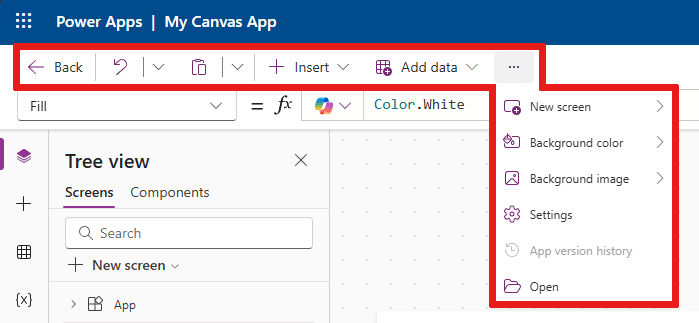
Power Apps Studio presents a central canvas where controls are dragged and configured, with the screen tree on the left, the properties panel on the right, and the formula bar at the top.
The typical process includes:
- Creating the necessary screens (main, form, detail, settings…)
- Adding visual controls (galleries, forms, buttons, labels…)
- Configuring navigation between screens
- Applying themes and styles consistent with corporate branding
Phase 4: Data Connection
From the Data panel, the required connectors are selected.
Examples of formulas:
// Filter items in a gallery
Filter(LlistaProductes, Categoria = "Electrònica" && Preu > 100)

// Save a new record
Patch(LlistaProductes, Defaults(LlistaProductes), {Nom: txtNom.Text, Preu: Value(txtPreu.Text)})
Phase 5: Business Logic
Validations, calculations, and business rules are implemented using Power Fx. For more complex processes, Power Automate is integrated.
Phase 6: Testing and Debugging
This includes using Play mode, the Monitor tool to trace errors, and testing across different devices.
Phase 7: Publish and Share
Once ready, the app is published and shared with specific users or groups, defining usage or co‑editing permissions.
Phase 8: Deployment Across Environments
In enterprise environments, the app is packaged within a Dataverse solution and deployed across development → test → production, with the option to automate this using pipelines.
Conclusions and recommendations
Power Apps Canvas Apps has established itself as one of the leading low-code platforms on the market, thanks mainly to its deep integration with the Microsoft 365 ecosystem and the large corporate user base that already uses tools such as SharePoint, Teams, and Excel. The ability to create functional applications without writing traditional code, combined with extensibility for professional developers through PCF and custom connectors, makes it a versatile tool for a wide range of business use cases.
However, it is not a universal solution. Its performance limitations with large volumes of data, the complexity of the licensing model, and the difficulties of maintaining complex applications make it important to carefully evaluate each use case before committing to the platform.
Recommendations
- Ideal for: Departmental applications, data capture, dashboards, mobile field apps, digitization of simple processes.
- Not recommended for: Applications with very high performance requirements, real-time management of large volumes of data, complex business logic, or end-consumer-oriented apps.
- Key tip: Always work within Dataverse solutions, plan the data model from the outset, and establish development and naming standards from day one.
Table of pros and cons:
Pros | Cons |
|---|---|
Rapid, visual development without the need for code | Delegation limit of 2,000 records with some data sources |
Native integration with the entire Microsoft 365 ecosystem | Degraded performance in complex applications or those with many connectors |
Over 1,000 connectors available for data sources | Complex licensing model and hidden costs with premium connectors |
Power Fx is intuitive for Excel users | Maintaining large applications quickly becomes complicated. |
Multi-platform execution (web, mobile, Teams) | Responsive design improved but still requires additional effort |
Integrated copilot and AI to accelerate development | Limited debugging compared to professional development environments |
Version history and source code control with YAML | Deployment across environments can be problematic due to connections. |
Free Developer Plan for development and testing | Limited offline support when using Dataverse as a data source |
Extensible with PCF for custom components | Advanced features require significant technical knowledge |
Active community and extensive official documentation | The promise of “low-code” is diluted in projects of medium-high complexity |